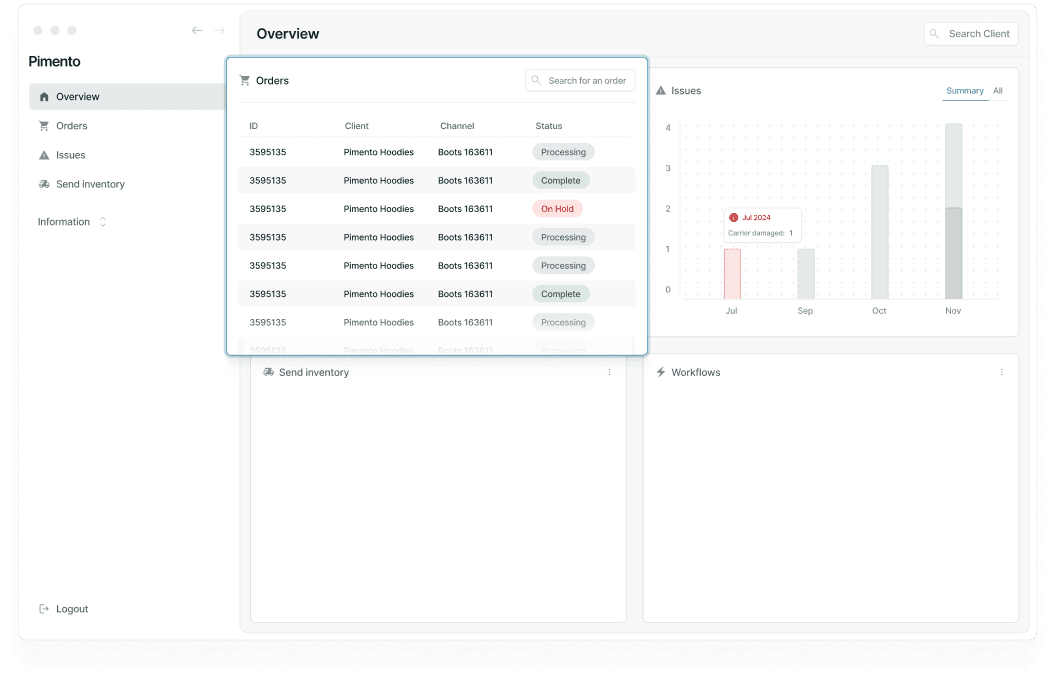
Lots Page Overview (Codes, Images, and Details)
Navigating the Lots Page
The Lots Page is your main workspace for viewing and managing all product batches in Pimento.
From here, you can:
• View all lots across products
• Track expiry and stock levels
• Filter and search lots
• Access individual lot details
You can access this page via Inventory → Lots
Lots List
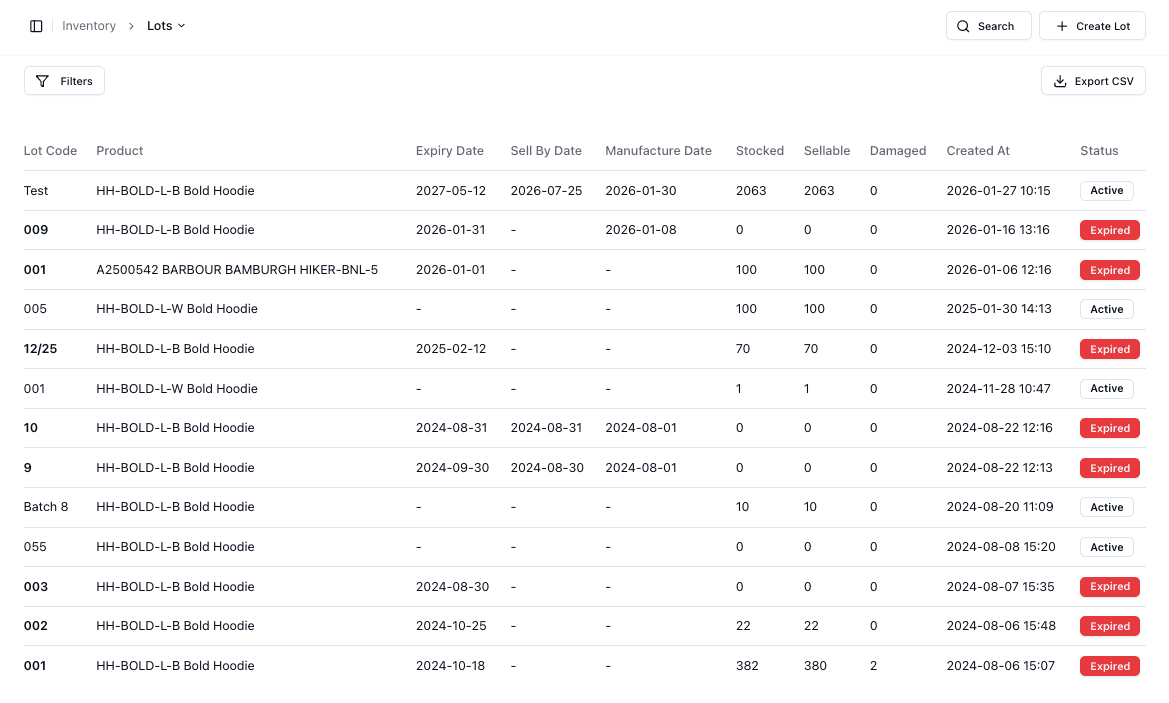
The main table displays all lots in a structured list.
For each lot you can view key information:
• Lot Code
• Product
• Expiry Date
• Sell By Date
• Manufacture Date
• Stocked / Sellable / Damaged
• Created At
• Status (Active / Expired)
This provides a clear overview of batch-level inventory.
Filtering and Searching
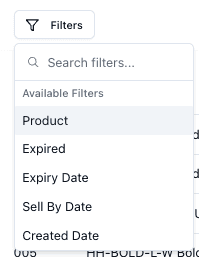
You can filter lots using the Filters option on the top-left.
Available filters include:
• Product
• Expired
• Expiry Date
• Sell By Date
• Created Date
This helps you quickly identify:
• Expiring stock
• Expired batches
• Specific product lots
Status and Expiry Visibility
Lots are automatically labelled based on their status:
• Active → Available for use
• Expired → Past expiry date
This makes it easy to identify which stock can still be used.
Individual Lot Details
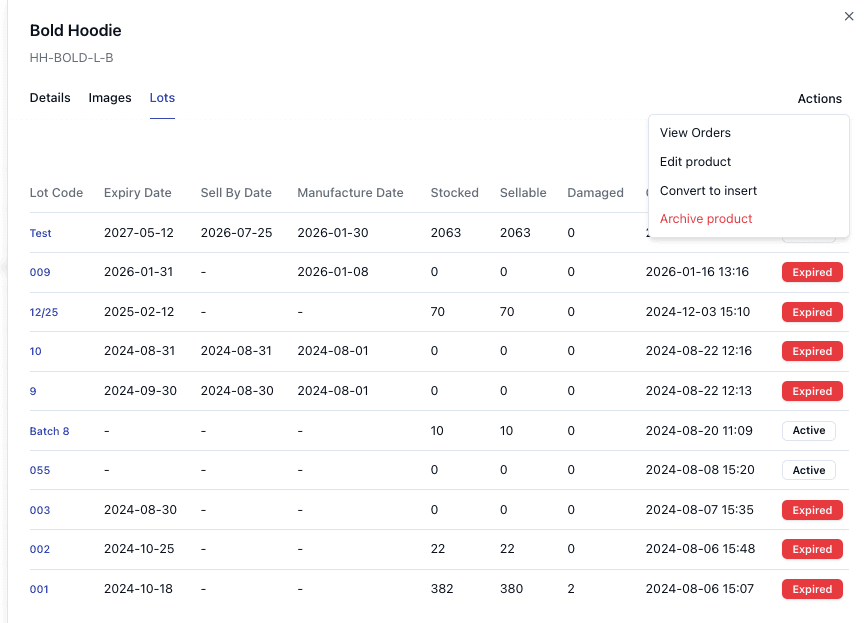
Clicking into a product and navigating to the Lots tab allows you to view lot-specific details.
From here, you can see:
• All associated lot codes
• Date information
• Inventory levels per lot
• Status (Active / Expired)
Important Notes
• Lot status is automatically determined by dates
• Filters are essential for managing large numbers of lots
• Inventory is tracked at the lot level, not just product level
• Expired lots should be reviewed to avoid fulfilment issues
FAQs
Can I filter by expiry date?
Yes — use the filters to find expiring or expired lots
What does “Expired” mean?
The lot has passed its expiry date and may not be usable