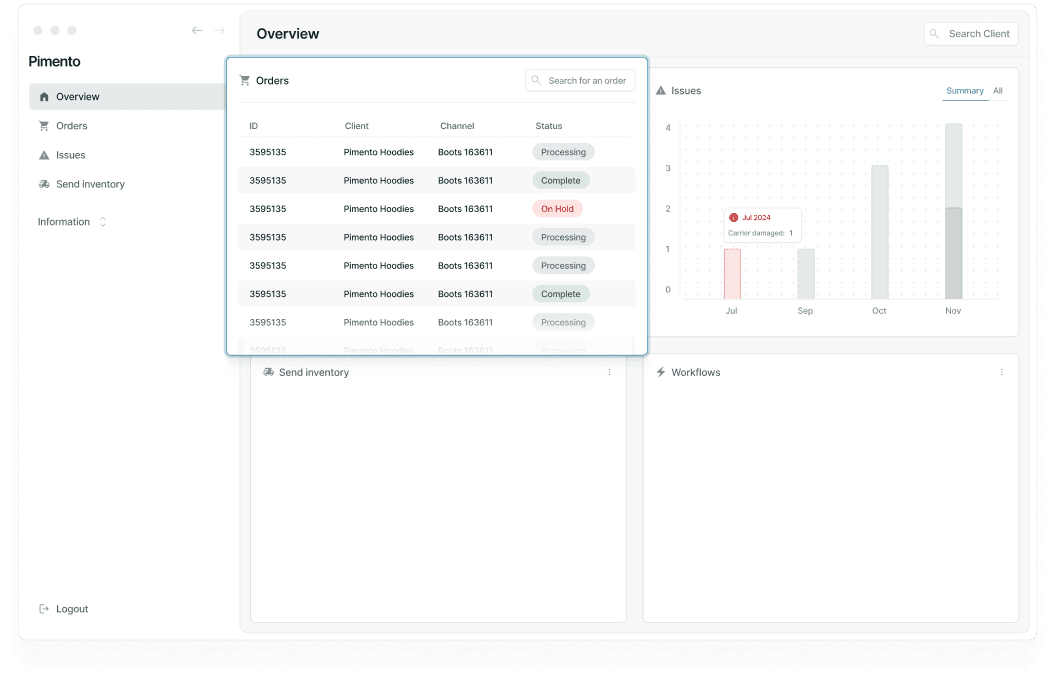
Orders Page Overview
Navigating the Orders Page
The Orders Page is your main workspace for navigating, viewing and managing all incoming orders in Pimento.
From here, you can:
View all orders across connected channels
Search for specific orders
Filer and sort orders based on different criteria
Access individual orders in detail
You can access this page via the Orders tab on the left-hand navigation bar
Orders List
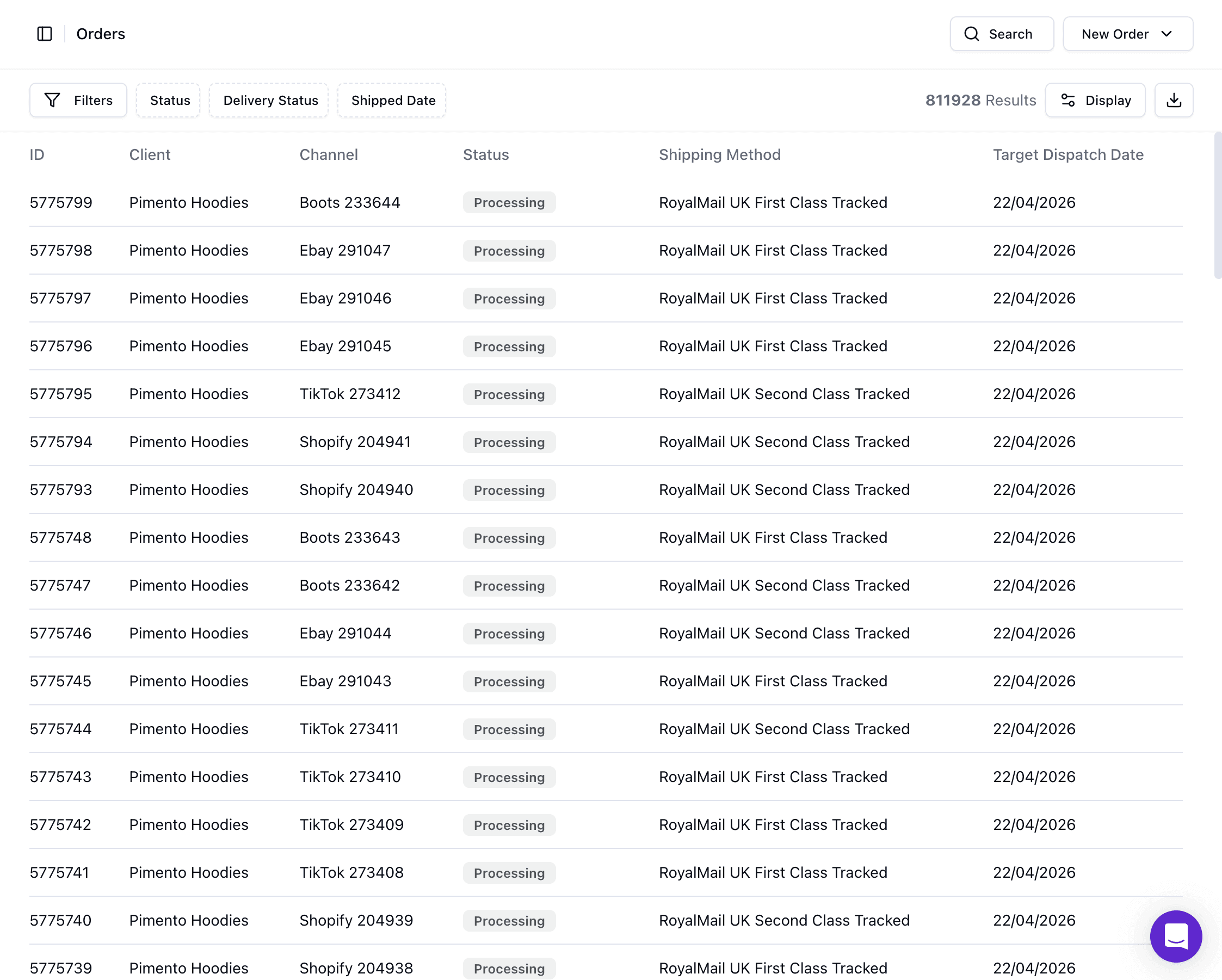
The main table displays all your orders past and present in a structured list.
For each order you can view key information, the default unconfigured will be shown as:
Order ID
Channel
Status
Shipping Method
This view gives you a snapshot of order activity and current status. The information viewable can be changed in the display / sorting button but we will get into that
Channel definition found here:
Searching for Orders
You can search for specific orders using the expandable search bar at the top-right of the page.
You can search by the following:
Order ID
Channel ID
All fields
Order ID is the unique identifier within Pimento and should be used whenever possible.
Channel ID refers to the order reference from the original sales channel (e.g. Shopify, TikTok, eBay).
Note: There can be identical Channel ID numbers across different Channel companies. However the ID will be unique and there should be no duplicates
Filtering Orders
Filters allow you to narrow down the order list based on specific criteria and is found on the top-left side of the order list section.
You can add and remove as many filters that you like, available filters include:
Status
Type
Channel
Channel Tags
Shipping
Priority
Product
Country
Created Date
Shipped Date
This is especially useful for identifying orders that are “On Hold” or need action.
To learn more about "On-Hold" Orders click here.
Sorting & Display Option
You can control how orders are displayed on the Orders Page using the Display menu located on the top-right side of the Orders Page below the search bar.
This allows you to:
Sort Orders from Newest First / Oldest First
Show or Hide specific columns (e.g. Created Date, Number of Units, etc..)
We recommend adjusting the displayed information based on what is most important in your workflow but note it is dynamic and can be changed easily at any time.
Downloads
You can download order data direction from the Orders Page. The button is found at top-right next to the Display button
This allows you to:
Export order information
Share data with other teams
Analyse orders externally if needed
Note: The download button will download anything that is displayed on the Orders Page, if you filter or search the Order Page to just a few orders those are the ones that will be downloaded. If you have Tens of thousands of orders on the page you will be told it is too big to download and you will need to filter down the Orders Page
The information downloaded will fill out a table of all the potential information an order can have, this means some table fields in the table will not be filled out, this is because there was no information provided for it.
Individual Order Details
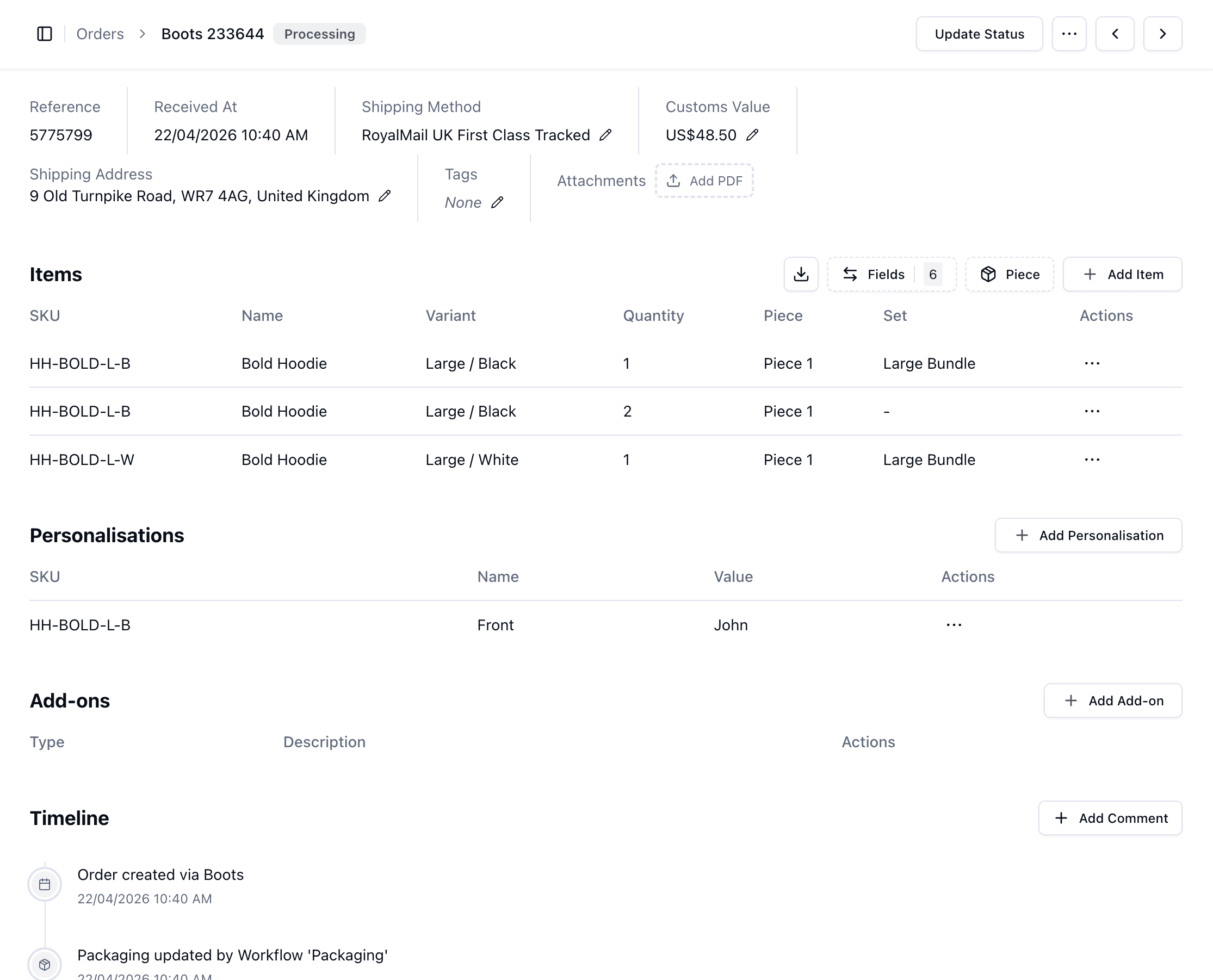
Clicking into an order opens the details order view. This is where you manage and take action on a specific order and is a very useful tool
From here, you can:
Add Items or Add-ons to the order
View full order information (address, shipping method, value)
See items and quantities
Add attachments or notes
Track activity via the timeline
View packaging and piece-level details
You can also take actions such as:
Update order status
Duplicate an order
Mark as priority
FAQs
How do I find a specific order quickly?
Use the search bar with an Order ID or Channel ID instead of scrolling.
How do I see only problem orders?
Apply a filter for On Hold status to focus on orders that need attention.
Can I customise what I see in the table?
Yes — use the Display options to show/hide columns and adjust sorting.